I wrote earlier about how I created interactive choice lists for the story branches in my new choose-your-own adventure comic Fauna. Today I published an update to Panels that has this functionality built in.
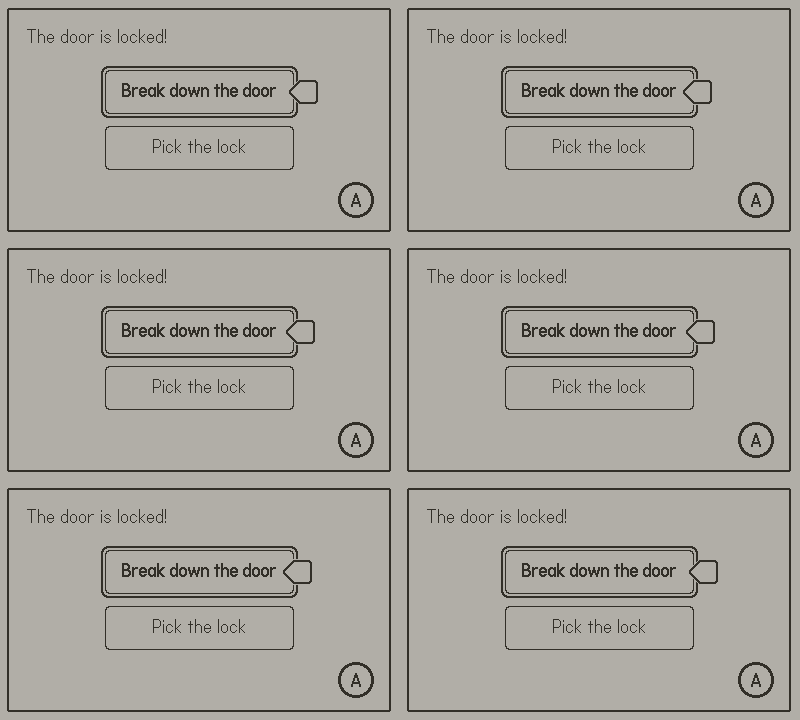
Choice List Syntax
To add an interactive choice list to your comic add the new choiceList property to any panel in your comic data:
{ -- Panel data
    layers = {
        { text = "The door is locked!", x = 20, y = 20 },
    },

    choiceList = {
        buttons = {
            { label = "Break down the door", target = "sequence8" },
            { label = "Pick the lock", target = "sequence5" }
        }
    }
}
Within the choiceList there is a list of buttons. Along with the text label, each button can specify a target sequence and/or a global variable to be set when the option is selected. In the example above, the comic will advance to sequence8 if the user presses the A button with the top button selected.
Customization
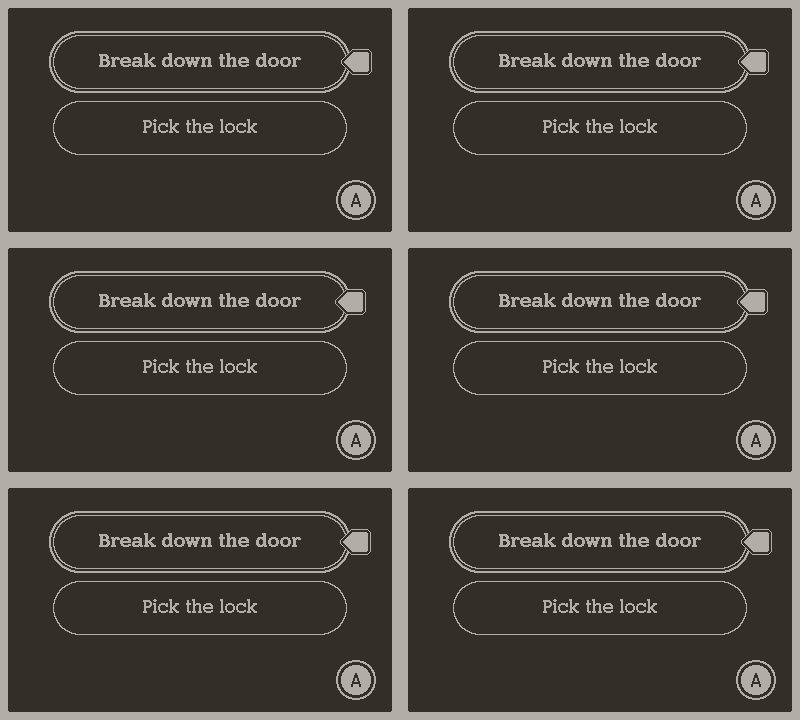
The look of the buttons can be customized by changing properties on the choiceList table. Developers can change the fonts, colors, border radius, size, and position of the buttons by setting custom properties:
choiceList = {
    fontFamily = {
        [Panels.Font.NORMAL] = 'fonts/SasserSlab/Sasser-Slab',
        [Panels.Font.BOLD] = 'fonts/SasserSlab/Sasser-Slab-Bold',
    },
    color = Panels.Color.WHITE,
    borderRadius = 40,
    width = 300,
    height = 60,
    y = 24,

    buttons = {
        { label = "Break down the door", target = "sequence8" },
        { label = "Pick the lock", target = "sequence5" }
    }
}
If you want more unique buttons, you can specify a render function to handle drawing the buttons in any style.
The pointer arrow can be changed by swapping out the PNG image.
Documentation & Examples
There’s a new Choice Lists page in the Panels documentation that covers all available properties.
I also added three new example sequences to the Panels Nonlinear Story Example project:
- Choice List
Display branching options to the user with a choice list. Each choice button sets a different target sequence to which the comic will progress when the user completes the current sequence. - Choice List (with variables)
In this example, each button also defines a global variable that gets set when the button is chosen. - Choice List (with callback function)
An advanced example showing how you can use a callback function to run custom logic whenever the chosen button is changed.